15 NotebookLM-Tipps und -Tricks, auf die Power-User schwören
Die meisten Leute laden ein PDF hoch, stellen drei Fragen und gehen wieder. Das hier sind die Gewohnheiten, die diese Erfahrung von der Leuten unterscheiden, die ganze Rechercheprojekte in NotebookLM betreiben.
NotebookLM wurde im Juli 2026 in Gemini Notebook umbenannt. Dieser Ratgeber behandelt dasselbe Produkt unter dem neuen Namen — alles Folgende gilt unabhängig davon, ob du es als NotebookLM oder als Gemini Notebook kennst.
Ich habe diese danach sortiert, wie stark sie deine Ergebnisse verändern, nicht danach, wie clever sie klingen. Die ersten fünf lohnen sich in jedem Notebook, das du anlegst. Der Rest hängt davon ab, wofür du NotebookLM nutzt.
1. Fragen mit den Quellen-Checkboxen eingrenzen
Jede Quelle hat eine Checkbox, und fast niemand fasst sie an. Häkchen bei allem entfernen außer den zwei Dokumenten, die du vergleichen willst, und die Antwortqualität springt nach oben: kein Durchsickern aus unbeteiligten Dateien, sauberere Zitate, schärfere Vergleiche. Das ist mit Abstand die wertvollste Gewohnheit in der ganzen App.
2. Notizen zu Quellen recyceln
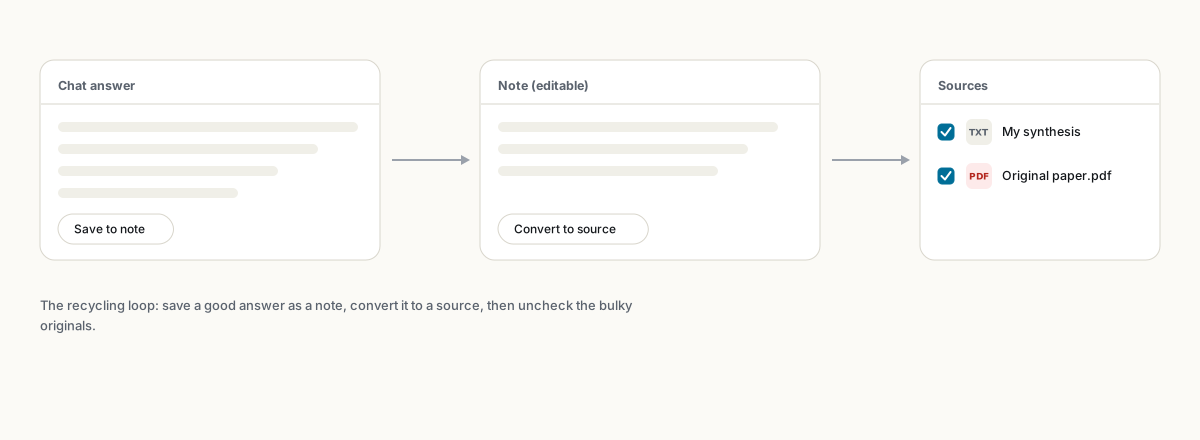
Speichere eine starke Antwort mit In Notiz speichern, und nutze dann In Quelle umwandeln aus dem Menü der Notiz. Jetzt ist deine eigene, verdichtete Synthese befragbares Material. Power-User betreiben ganze Projekte auf diese Weise: ein Briefing-Dokument aus zwanzig Quellen erzeugen, umwandeln, dann die Häkchen bei den Originalen entfernen und gegen die Destillation chatten. Antworten werden schneller und präziser, und man gewinnt gleichzeitig Quellenplätze zurück.
3. Jede Quelle umbenennen, bevor du irgendetwas generierst
Quellentitel liefern dem Modell Kontext. Eine Mindmap, die aus dokument(3).pdf, final_v2.pdf und scan0001.pdf gebaut wurde, ist messbar schlechter als eine aus beschreibenden Namen. Dreißig Sekunden Umbenennen schlagen die meiste Prompt-Feinarbeit.
4. Einmal pro Notebook eigene Chat-Anweisungen festlegen
Öffne das Einstellungs-Symbol im Chat-Panel und wähle Benutzerdefiniert. Was du dort einträgst, gilt für jede künftige Frage in diesem Notebook. Ein funktionierendes Beispiel: „Zitiere nach jeder Behauptung die Quelle und die Stelle. Wenn etwas nicht in den Quellen steht, sag ‚nicht in den Quellen‘. Verzichte auf Einleitungen.“ Kein Wiederholen mehr in jedem Prompt. Vollständige Anleitung im Leitfaden zu den Chat-Einstellungen.
5. Zitate anklicken wie eine Gewohnheit
NotebookLM ist geerdet, nicht unfehlbar. Eine journalistische Studie maß etwa 13 % der Behauptungen als unbelegt, weit besser als bei offenen Chatbots, aber nicht null. Die Zitat-Chips machen Überprüfung zu einer Zwei-Sekunden-Sache: Hovern zur Vorschau, Klicken zum Sprung in die Quelle. Mach das bei allem, was du weiterverwenden willst. Mehr dazu im Leitfaden zu Zitaten und Genauigkeit.
6. Der „Nicht zusammenfassen“-Audio-Hack
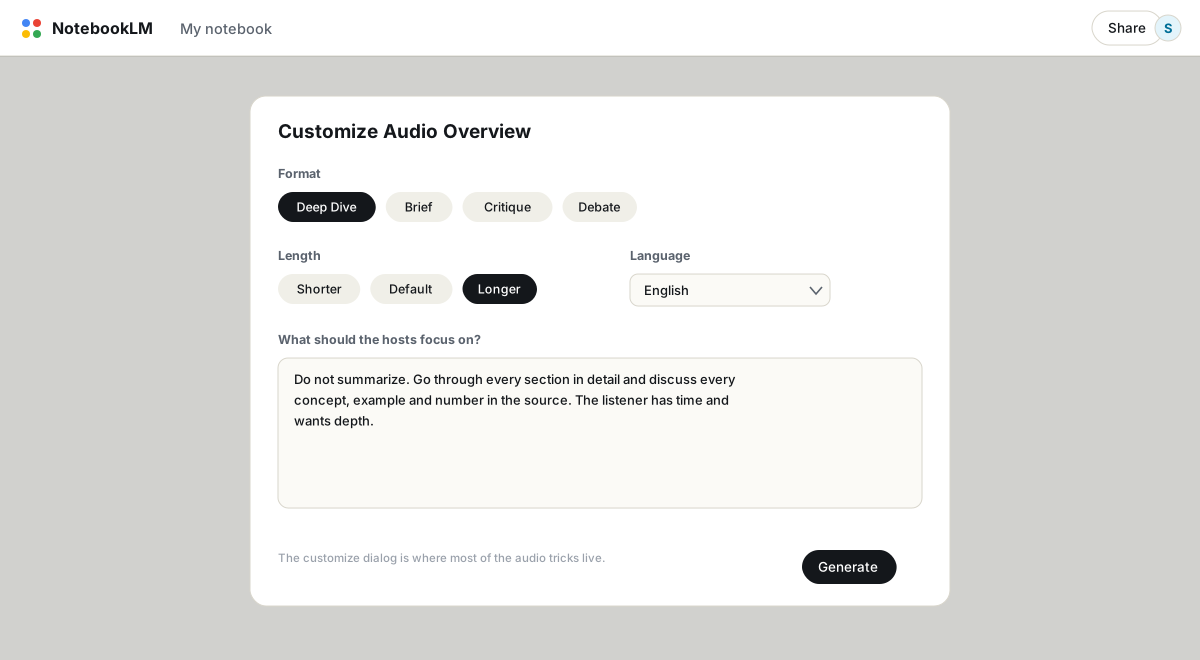
Die Hosts der Audioübersicht fassen standardmäßig zusammen. Sag ihnen, dass sie das nicht sollen: „Fasse nicht zusammen. Geh jeden Abschnitt im Detail durch und bespreche jedes Konzept, jedes Beispiel und jede Zahl.“ Kombiniert mit der Längeneinstellung Länger bekommen Leute daraus zuverlässig 40- bis 60-minütige Folgen aus Material, das sonst zu einer 12-minütigen Übersicht werden würde. Das Gegenteil funktioniert auch: „bleib innerhalb von 5 Minuten“ strafft eine ausufernde Folge.
7. Gib den Podcast-Hosts Aufgaben
Die Standard-Hosts stimmen einander bis zur Parodie zu. Weise im Anpassungs-Prompt Rollen zu: ein Host erklärt, der andere hinterfragt die Methodik und spielt den Advocatus Diaboli. Das Ergebnis hat echte Spannung und legt Schwächen in deinem Material offen. Weitere Prompt-Rezepte in Audioübersicht-Prompts.
8. Die Quellengrenze mit Google-Docs-Tabs umgehen
Ein Google Doc mit zehn Tabs wird als eine Quelle importiert, aber jeder Tab bleibt ein in sich abgeschlossener Abschnitt. Leute, die Recherche auf diese Weise bündeln, berichten von einer Reduzierung ihrer Quellenzahl um deutlich mehr als die Hälfte. Das Zusammenführen verwandter PDFs zu einer Datei funktioniert nach demselben Prinzip. Der Kompromiss und zwei weitere Methoden stehen in Quellenlimits.
9. Mindmap-Knoten als Navigationssystem nutzen
Ein Mindmap-Knoten ist kein Bild, sondern ein Knopf: klick ihn an, und der Chat öffnet sich vorab auf diesen Zweig eingegrenzt. Und lies die Karte kritisch. Dünne Zweige bedeuten dünne Abdeckung, ein spärlicher Zweig ist also buchstäblich eine Liste dessen, was als Nächstes zu untersuchen oder zu beschaffen ist. Siehe Mindmaps.
10. Füttere es mit YouTube-Playlists
Jede öffentliche YouTube-URL mit Untertiteln wird zu einer Quelle. Füge fünf Tutorials ein und frag „ordne diese vom grundlegendsten zum fortgeschrittensten“, und du hast eine Reihenfolge zum Anschauen. Stell eine Frage, und das Zitat springt zum exakten Transkript-Moment. Das ersetzt still und leise Stunden passiven Zuschauens; Details zum Workflow in YouTube-Quellen.
11. Das Audio interviewen statt nur zuzuhören
Der Interactive-Modus (der Beitreten-Button bei einer laufenden Audioübersicht, vorerst nur auf Englisch) lässt dich die Hosts mit einer gesprochenen Frage unterbrechen. Sie antworten aus deinen Quellen und machen mit der Folge weiter. Das verwandelt einen Pendler-Podcast in Sprechstunde.
12. Widersprüche erzwingen
Zusammenfassungen mitteln deine Quellen zu einer glatten Geschichte, was für Recherche genau falsch ist. Frag direkt: „Finde jede Unstimmigkeit zwischen meinen Quellen. Nenne für jede: die Behauptung, wer welche Seite vertritt, und wer die stärkere Evidenz hat.“ Dieser eine Prompt ist der Unterschied zwischen einer kommentierten Bibliografie und einer echten Analyse. Mehr in beste Prompts.
13. Notebooks für notebookübergreifende Fragen an Gemini anhängen
Notebooks können nicht miteinander sprechen, was schmerzhaft wird, sobald man dem guten Rat folgt, sie klein und fokussiert zu halten. Der Workaround: In der Gemini-App mehrere Notebooks an eine Konversation anhängen und über sie hinweg fragen. Das ist derzeit der einzige Weg, zwischen Notebooks zu synthetisieren.
14. Ein Prompts-Notebook führen
Eigene Anweisungen übertragen sich nicht zwischen Notebooks. Führe ein Notebook mit einer einzigen Notiz, die deine bestperformenden Prompts enthält, und kopiere daraus, wenn du ein Projekt startest. Langweilig, wirksam.
15. Deine Arbeit rausholen, bevor du sie brauchst
Das klassische NotebookLM-Bedauern ist, zwei Wochen Analyse zu machen und dann festzustellen, dass es keinen sauberen Weg gibt, sie jemandem zu übergeben. Manche Berichte exportieren nach Google Docs, aber Chats und die meisten Ausgaben nicht. Die NotebookLM-to-PDF-Erweiterung fügt einen Ein-Klick-Export nach PDF, Word oder Markdown mit intakten Zitaten hinzu, und eine regelmäßige Backup-Gewohnheit macht aus einem gelöschten Notebook eine Unannehmlichkeit statt einer Katastrophe.
FAQ
Was ist der nützlichste NotebookLM-Trick?
Fragen mit den Quellen-Checkboxen eingrenzen. Häkchen bei allem außer den für deine Frage relevanten Quellen zu entfernen, schärft Antworten mehr als jede Prompt-Technik.
Wie mache ich NotebookLM-Audioübersichten länger?
Wähle die Längeneinstellung Länger und füge einen Anpassungs-Prompt hinzu, der den Hosts sagt, sie sollen nicht zusammenfassen, sondern jeden Abschnitt im Detail behandeln. Folgen von 40 Minuten und mehr sind üblich.
Können sich NotebookLM-Notebooks gegenseitig referenzieren?
Nicht direkt; jedes Notebook ist eine Insel für sich. Der Workaround ist, mehrere Notebooks an eine Gemini-Konversation anzuhängen und dort notebookübergreifend zu fragen.
Ist NotebookLM dasselbe wie Gemini Notebook?
Ja. Google hat NotebookLM im Juli 2026 in Gemini Notebook umbenannt — dasselbe Produkt, dieselben Funktionen, nur ein neuer Name.
Exportiere dein NotebookLM mit einem Klick
Kostenlose Chrome-Erweiterung. PDF, Word und Markdown. Auf deinem Gerät gerendert — nichts wird hochgeladen.