NotebookLM sources: what to upload and how to prepare it
Answers can only be as good as the sources behind them, and most bad NotebookLM experiences are source problems wearing a disguise. What the app accepts, where the limits are, and the five minutes of preparation that pay for themselves.
NotebookLM was renamed Gemini Notebook in July 2026. This guide covers the same product under its new name — everything below still applies whether you know it as NotebookLM or Gemini Notebook.
What NotebookLM accepts
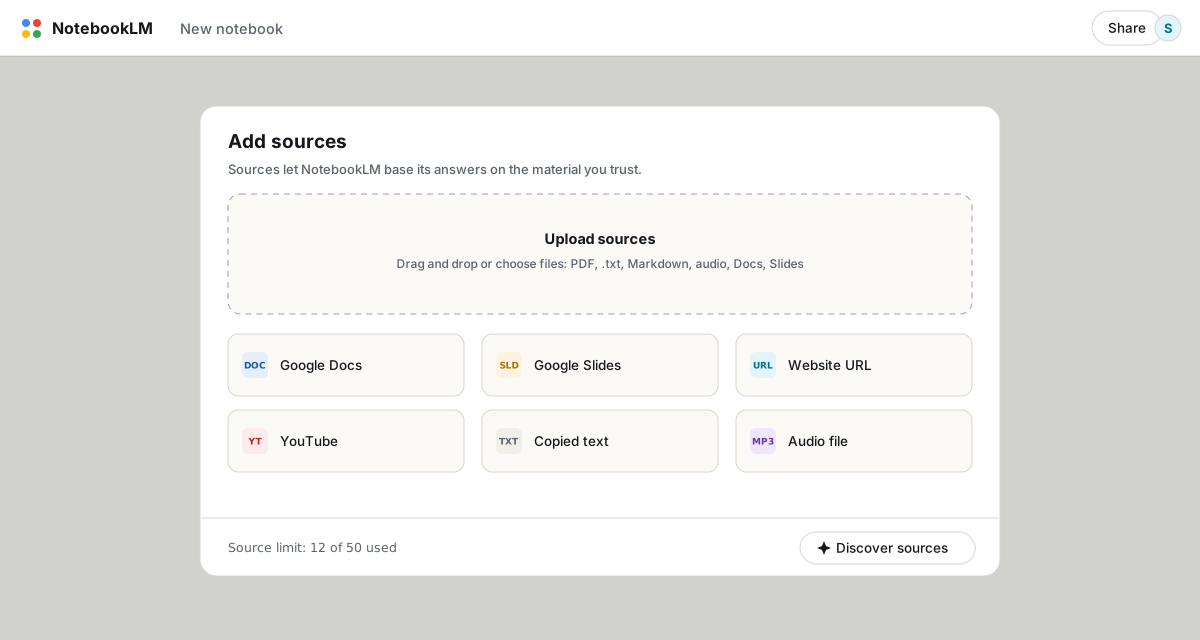
- Files: PDF, Word (.docx), plain text, Markdown, CSV, PowerPoint (.pptx), ePub, common image formats, and audio files like MP3 and WAV (which get transcribed).
- Google Drive: Docs, Slides and Sheets, either through the picker or by pasting Drive URLs. Native Drive files now sync automatically every few minutes, so edits flow through.
- The web: any URL (text content only), public YouTube videos with captions, and pasted text for everything else.
- The web, found for you: Fast and Deep Research discover and import sources from a description of what you need.
The limits that actually matter
Each source can hold up to 500,000 words or 200 MB, and that cap is the same on every plan, free or paid. What changes with money is the count: 50 sources per notebook free, 300 on Pro. In practice the per-source generosity is the loophole that matters, since one merged document counts as one source; the source limits article covers that game properly.
Preparation habits that visibly improve answers
- Rename everything. Source names are context the model uses.
2024 Kotter - Change Management Frameworkoutperformsdocument(3).pdfin mind maps, reports and citation readability. - Prefer text over scans. A PDF with selectable text imports cleanly. A scanned PDF without a text layer imports badly or not at all; run OCR on it first.
- Give structure to messy documents. Multi-column layouts and dense tables confuse extraction. Converting an ugly PDF to clean Markdown or a simple doc with real headings produces noticeably better citations.
- One topic per notebook. Twenty sources about one subject produce sharp answers. Fifty sources about five subjects produce mush, because every question competes against irrelevant context.
- Add the important sources first. Practitioners consistently report that earlier sources carry more weight in synthesis. Cheap to do, so do it.
Website and audio fine print
- Website import scrapes visible HTML text only: no images, no video, nothing rendered by JavaScript, and nothing behind a paywall or login. If a page matters, print it to PDF yourself and upload that.
- Audio uploads are transcribed, so the same rule as YouTube applies: the words are captured, the sounds are not.
- A source is a snapshot unless it is a native Drive file. Uploaded PDFs and pasted URLs never refresh; re-upload when the underlying thing changes.
Deleting and replacing
Each source's three-dot menu offers rename and delete. Deletion is one at a time, confirmed, and permanent for the notebook (your original file is untouched). Since answers depend on the source mix, a periodic prune improves a long-lived notebook the way weeding improves a garden. Before pruning a notebook you might want back someday, export a backup first.
FAQ
What file types can I upload to NotebookLM?
PDF, Word, plain text, Markdown, CSV, PowerPoint, ePub, images and audio files, plus Google Docs, Slides and Sheets, website URLs, YouTube links and pasted text.
How big can a single source be?
Up to 500,000 words or 200 MB per source, on every plan. The number of sources per notebook is what varies: 50 free, up to 300 on Pro and more on Ultra.
Why does my PDF upload fail?
It is usually a scanned document with no text layer, or a file over the size cap. OCR the scan or split the file, then re-upload.
Do sources update when the original changes?
Native Google Drive files now sync automatically. Everything else (uploads, URLs, pasted text) is a snapshot from the moment you added it.
Is NotebookLM the same as Gemini Notebook?
Yes. Google renamed NotebookLM to Gemini Notebook in July 2026 — it's the same product, same features, just a new name.
클릭 한 번으로 NotebookLM 내보내기
무료 Chrome 확장 프로그램. PDF, Word, Markdown 지원. 내 컴퓨터에서 직접 렌더링되며 업로드되는 것은 없습니다.