How to use YouTube videos as NotebookLM sources
Any public YouTube video with captions can become a NotebookLM source. Ten tutorials stop being a weekend of watching and become a corpus you can question, rank and skim. Here is the workflow, plus the fine print about what actually gets imported.
NotebookLM was renamed Gemini Notebook in July 2026. This guide covers the same product under its new name — everything below still applies whether you know it as NotebookLM or Gemini Notebook.
In the Sources panel, click Add, choose YouTube, and paste the video URL. NotebookLM imports the transcript and treats it like any document: ask questions across videos, get citations that point at the exact transcript moment, and generate study guides or mind maps from a whole playlist's worth of material.
What actually gets imported
The transcript, and only the transcript. NotebookLM does not watch the visuals, so a video that says "as you can see here" over a diagram contributes nothing at that moment. This makes talk-heavy content (lectures, interviews, explainers, conference talks) ideal, and visual-heavy content (silent screencasts, cooking demonstrations) a poor fit. Three more constraints: the video must be public, it needs captions, and very fresh uploads sometimes fail to import for a day or two.
The playlist-to-curriculum workflow
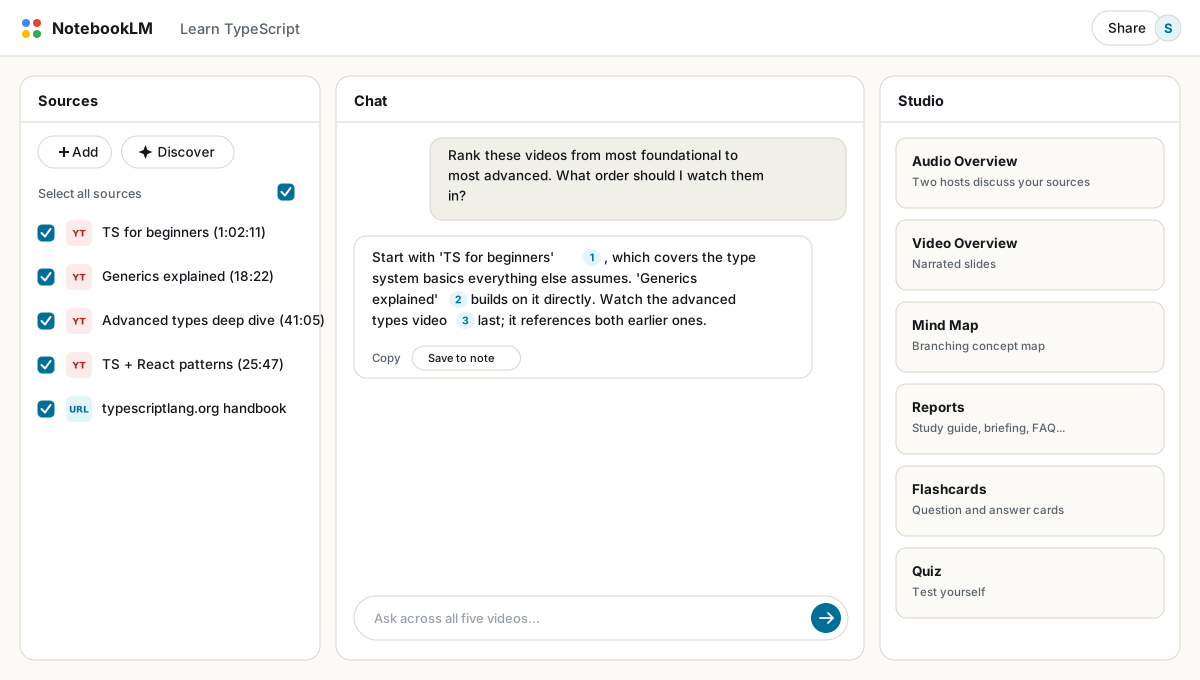
- Collect 5 to 10 videos on one topic from different creators and paste each URL in as a source. NotebookLM only takes one video per paste, so for a genuinely long playlist see the note below.
- Ask for a ranking: "Summarize each video, then rank them from most foundational to most advanced. Which should I watch first, and which can I skip entirely?" You now have a curriculum instead of a playlist.
- Generate a mind map to see how the creators' explanations overlap and where they diverge. Divergence is usually the interesting part.
- Watch selectively. Query first, watch second. When a cited answer looks important, the citation drops you at the right transcript moment, and you watch three minutes instead of forty.
Ten videos is a quick copy-paste job. Fifty is not. YouTube to NotebookLM is a separate extension built for exactly that: point it at a playlist or channel and it queues every video as a labeled source in one pass, transcript included, instead of pasting links one at a time.
Questions that work well on video sources
- "List every concrete step the presenter gives, in order, with the video and timestamp each came from."
- "Where do these creators contradict each other, and who gives evidence rather than opinion?"
- "Extract every tool, product or resource mentioned across all videos into one list."
- "Which questions from the audience Q&A did the speaker dodge or answer weakly?"
Mixing video with text sources
The strongest study notebooks mix formats deliberately: video tutorials for practice, official documentation for authority, an article or two for context. Ask a question and the answer synthesizes all three, with citations telling you which format contributed what. When a video and the docs disagree, you have found either an outdated tutorial or an undocumented behavior, and both are worth knowing. General source strategy is covered in the sources guide.
Lecture-heavy courses compress beautifully this way: import the semester's recorded lectures, generate one study guide across all of them, and export it to PDF for offline revision.
FAQ
Can NotebookLM summarize a YouTube video?
Yes. Paste the URL as a source and ask for a summary, or add several videos and query across all of them at once. Citations link back to transcript locations.
Why did my YouTube import fail?
The usual causes: the video is private or unlisted, it has no captions, or it was uploaded within the last couple of days. Age-restricted content also fails.
Does NotebookLM see what's on screen in the video?
No. Only the transcript is imported, so purely visual moments contribute nothing. Talk-heavy videos work best.
Can I import a whole playlist at once?
Not with NotebookLM alone; it takes one video URL at a time. YouTube to NotebookLM is a dedicated extension that queues an entire playlist or channel in one click.
Is NotebookLM the same as Gemini Notebook?
Yes. Google renamed NotebookLM to Gemini Notebook in July 2026 — it's the same product, same features, just a new name.
클릭 한 번으로 NotebookLM 내보내기
무료 Chrome 확장 프로그램. PDF, Word, Markdown 지원. 내 컴퓨터에서 직접 렌더링되며 업로드되는 것은 없습니다.