NotebookLM chat settings: personas and custom instructions
Buried behind a small settings icon, NotebookLM's chat configuration is the closest thing the app has to a system prompt. Set it once and every answer in the notebook follows your rules.
NotebookLM was renamed Gemini Notebook in July 2026. This guide covers the same product under its new name — everything below still applies whether you know it as NotebookLM or Gemini Notebook.
Open a notebook, click the settings icon in the Chat panel, and choose a chat style: Default, Learning Guide, or Custom. Custom accepts free-text instructions that persist for every question in that notebook. Response length (Shorter, Default, Longer) is set in the same place.
The three chat styles
- Default answers questions directly, the way you already know.
- Learning Guide turns the chat into a tutor: instead of handing you answers, it asks questions back, breaks problems into steps and checks your understanding. Genuinely different behavior, and most students never find it.
- Custom hands you the wheel: a text box whose contents become standing instructions for the whole notebook.
What to put in custom instructions
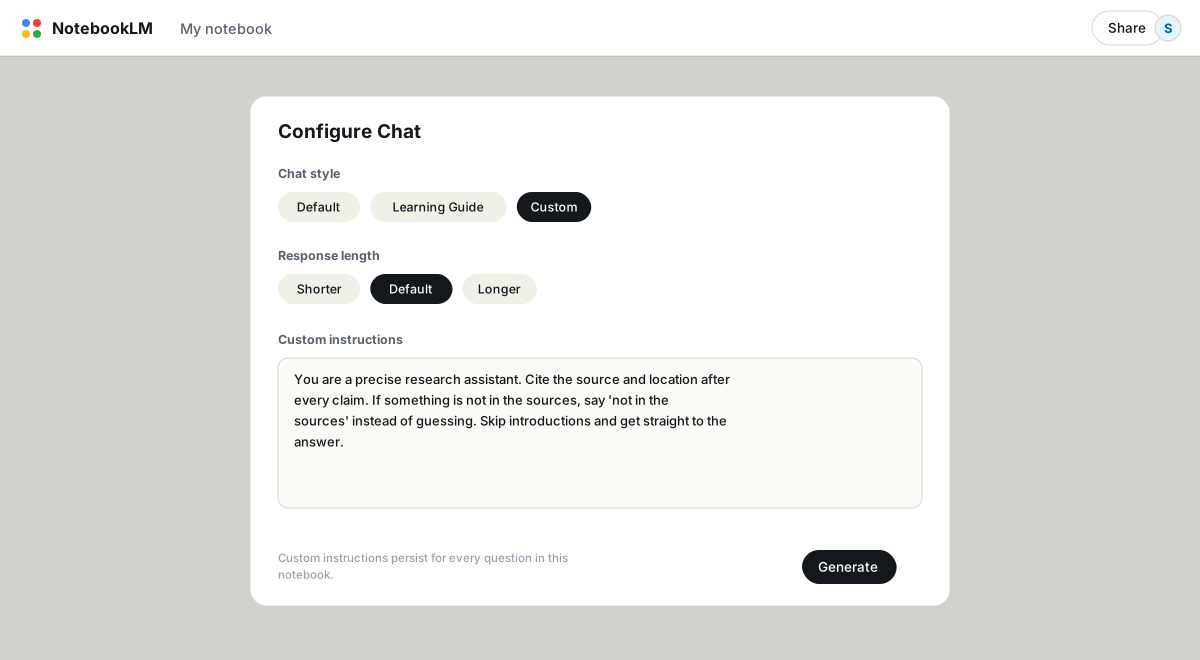
Three things belong here: who the assistant is, how it should respond, and what format to use. A setup that has served me well for research notebooks:
You are a precise research assistant. Cite the source and location after every claim. If something is not in the sources, say 'not in the sources' instead of guessing. No introductions, no recap of my question. Use tables for any comparison.The "not in the sources" line is the workhorse. NotebookLM is already grounded, but an explicit permission to say "I don't know" measurably cuts the cases where it stretches a weak citation to cover a gap.
Personas that earn their keep
Skip the theatrical personas and describe a job instead. Some that work:
- The skeptical reviewer for anything you plan to publish: "Challenge weak evidence. Mark claims as supported, inferred or unsupported."
- The examiner for study notebooks: "Ask me questions instead of summarizing. Grade my answers against the sources."
- The plain-language explainer for dense material: "Assume I am smart but new to this field. Define every term of art on first use."
- The one-pager machine for work notebooks: "Every answer fits one page: situation, findings as bullets, recommended action, key risk."
Response length
The same dialog sets response length. Shorter is good for quick lookups and terrible for synthesis; Longer is the reverse. This interacts with your instructions: a persona that demands one-page memos will fight the Longer setting, so pick one mechanism and let it win.
The fine print
- Instructions are per notebook. Nothing transfers. Keep your best configurations in a note somewhere and paste them into new notebooks; a dedicated prompts notebook is the least annoying way.
- Chat history is saved automatically and stays private to you, even in shared notebooks. Collaborators get their own configuration and their own history.
- Free accounts get 50 chat messages a day, which sounds high until an examiner persona is asking you 15 questions one at a time. Paid tiers raise it; see free vs paid.
A well-configured chat produces answers worth keeping. The NotebookLM to PDF extension exports a whole conversation to PDF, Word or Markdown with citations preserved; see exporting chats.
FAQ
Where are NotebookLM's chat settings?
Inside a notebook, click the settings icon in the Chat panel. That opens Configure Chat with the style options and response length.
Do custom instructions apply to Studio outputs like podcasts?
No. They shape chat answers only. Audio Overviews, reports and other Studio outputs have their own customize prompts when you generate them.
What is Learning Guide mode?
A tutoring style: NotebookLM asks guiding questions and works through problems step by step instead of answering directly. Made for studying, and easy to switch off again in the same dialog.
Is NotebookLM the same as Gemini Notebook?
Yes. Google renamed NotebookLM to Gemini Notebook in July 2026 — it's the same product, same features, just a new name.
Експортуйте свій NotebookLM в один клік
Безкоштовне розширення Chrome. PDF, Word і Markdown. Обробка на вашому пристрої — нічого не завантажується в мережу.