Vidéos de synthèse NotebookLM : formats, styles et attentes réalistes
NotebookLM peut transformer vos sources en vidéo narrée : diapositives, illustrations, voire séquences cinématiques. C'est impressionnant, lent à générer, et plus adapté à certains usages qu'à d'autres. Voici le tableau complet.
NotebookLM a été renommé Gemini Notebook en juillet 2026. Ce guide porte sur le même produit sous son nouveau nom — tout ce qui suit s'applique, que vous le connaissiez sous le nom de NotebookLM ou de Gemini Notebook.
Cliquez sur Vidéo de synthèse dans le panneau Studio, puis sur l'icône de personnalisation. Choisissez un format (Explicatif, Cinématique ou Court), un style visuel, et ajoutez une consigne de pilotage. La génération s'exécute en arrière-plan et peut prendre du temps, parfois plus d'une demi-heure. La vidéo terminée peut être lue, téléchargée ou partagée.
Les trois formats
- Explicatif est le format pratique : des diapositives narrées et structurées qui parcourent votre contenu. Il prend en charge plus de 50 langues et convient aux supports de formation, aux documents d'intégration et aux récapitulatifs de cours.
- Cinématique génère de véritables images vidéo autour de votre contenu. Les résultats sont saisissants, mais les quotas sont serrés : c'est majoritairement réservé aux forfaits Ultra haut de gamme, et limité à quelques générations par jour même là.
- Court est un résumé d'environ 60 secondes au format vertical, pensé pour les réseaux sociaux et le partage rapide.
Les styles visuels
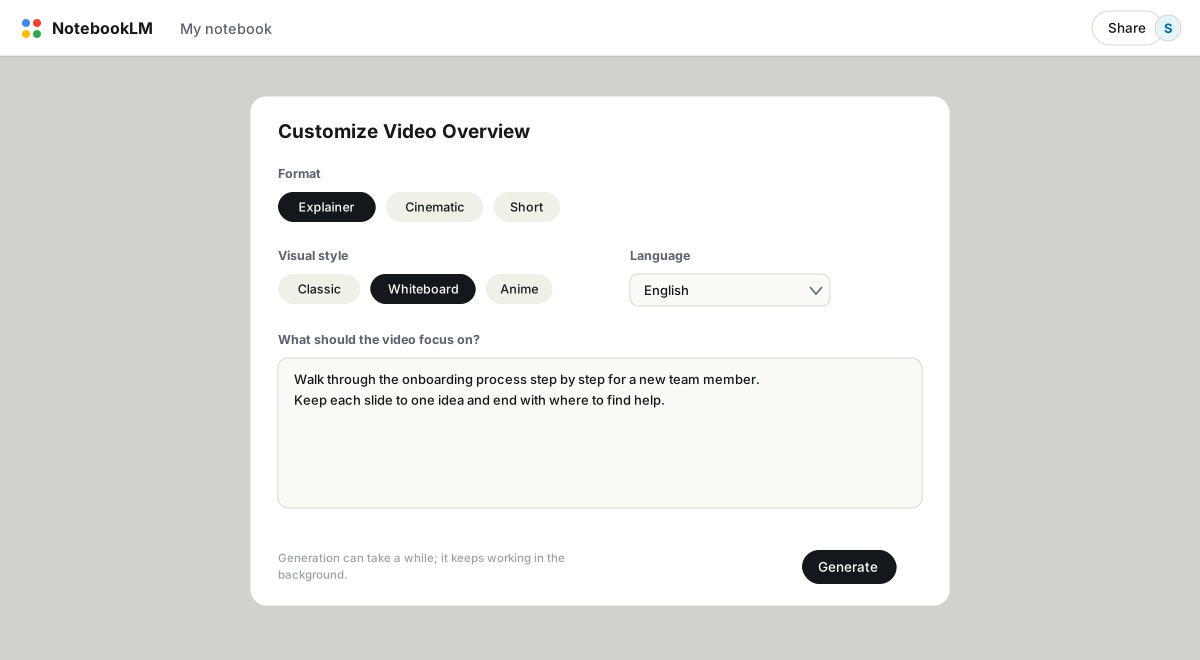
Les vidéos Explicatif peuvent être rendues dans plusieurs styles d'illustration : Classique, Tableau blanc, Aquarelle, Impression rétro, Héritage, Papier découpé, Kawaii et Anime notamment, ou un style personnalisé que vous décrivez vous-même. Le style relève de la présentation, pas du fond : un style tableau blanc ne rendra pas concis un document décousu. Adaptez-le au public : Tableau blanc fonctionne bien pour la formation interne, Classique pour tout ce qui part chez des clients.
La consigne de pilotage fait office de montage
Il n'y a ni éditeur de chronologie ni correction diapositive par diapositive. La consigne de pilotage est le seul levier : traitez-la comme un brief de réalisateur — public, périmètre, structure, ton. « Détaillez le processus d'intégration étape par étape pour un nouveau membre de l'équipe. Une idée par diapositive. Terminez en indiquant où trouver de l'aide. » Des instructions aussi concrètes font la différence entre une vidéo que vous publiez et une vidéo que vous régénérez trois fois.
À quoi s'attendre, honnêtement
- La génération est lente. Quelques minutes dans le meilleur des cas, et les vidéos complexes peuvent dépasser 30 minutes. Elle tourne en arrière-plan, donc lancez-la et occupez-vous ailleurs.
- Les quotas sont réels. Les comptes gratuits ont droit à 3 générations de vidéo par jour, Pro à 20. Cinématique est une ressource rare à part sur les forfaits Ultra.
- Les téléchargements portent un filigrane, sauf sur Ultra.
- La régénération est la seule révision possible. Conservez vos consignes de pilotage quelque part : vous les réutiliserez et les affinerez.
Où la vidéo l'emporte sur l'audio, et où elle perd
Un Audio Overview se génère plus vite, se consomme plus facilement en faisant autre chose, et coûte moins de quota. La vidéo l'emporte quand la structure doit être vue (processus, hiérarchies, tout ce qui comporte un schéma) ou quand le livrable lui-même est une vidéo, comme une leçon ou un clip social. Pour les créateurs de contenu, l'approche qui fonctionne consiste à traiter la vidéo comme un premier jet visuel pour un script, pas comme le produit final ; plus de détails dans NotebookLM pour les rédacteurs.
FAQ
Combien de temps prend la génération d'une vidéo de synthèse ?
De quelques minutes à plus d'une demi-heure pour un contenu complexe. Elle s'exécute en arrière-plan, et le résultat apparaît dans le panneau Studio une fois prêt.
Puis-je retirer le filigrane ?
Les téléchargements sans filigrane sont une fonctionnalité réservée au niveau Ultra. Sur les forfaits gratuit et Pro, les vidéos téléchargées portent un filigrane NotebookLM.
Quelles langues les vidéos de synthèse prennent-elles en charge ?
Le format Explicatif prend en charge plus de 50 langues. Cinématique et Court sont pour l'instant réservés à l'anglais et limités aux comptes adultes.
Puis-je modifier la vidéo après sa génération ?
Non. Il n'existe pas d'éditeur. Ajustez plutôt la consigne de pilotage, le style ou la sélection des sources, puis régénérez.
NotebookLM et Gemini Notebook sont-ils la même chose ?
Oui. Google a renommé NotebookLM en Gemini Notebook en juillet 2026 — c'est le même produit, avec les mêmes fonctionnalités, seul le nom change.
Exportez votre NotebookLM en un clic
Extension Chrome gratuite. PDF, Word et Markdown. Généré sur votre machine — rien n'est envoyé en ligne.