Comment partager un notebook NotebookLM
Un notebook devient bien plus utile dès que plusieurs personnes peuvent l'interroger. Voici ce que permettent réellement les rôles Lecteur et Éditeur, comment fonctionnent les liens publics, et ce qui reste privé même dans un notebook partagé.
NotebookLM a été renommé Gemini Notebook en juillet 2026. Ce guide couvre le même produit sous son nouveau nom — tout ce qui suit reste valable, que vous le connaissiez sous le nom de NotebookLM ou de Gemini Notebook.
Cliquez sur Partager en haut d'un notebook ouvert, ajoutez des personnes par e-mail, et définissez-les comme Lecteur (peut discuter et lire les productions Studio, ne peut pas modifier) ou Éditeur (peut ajouter ou retirer des sources et partager à son tour). Activez « Toute personne disposant du lien » pour rendre le notebook accessible publiquement sans inviter d'adresses e-mail individuelles.
Lecteur contre Éditeur
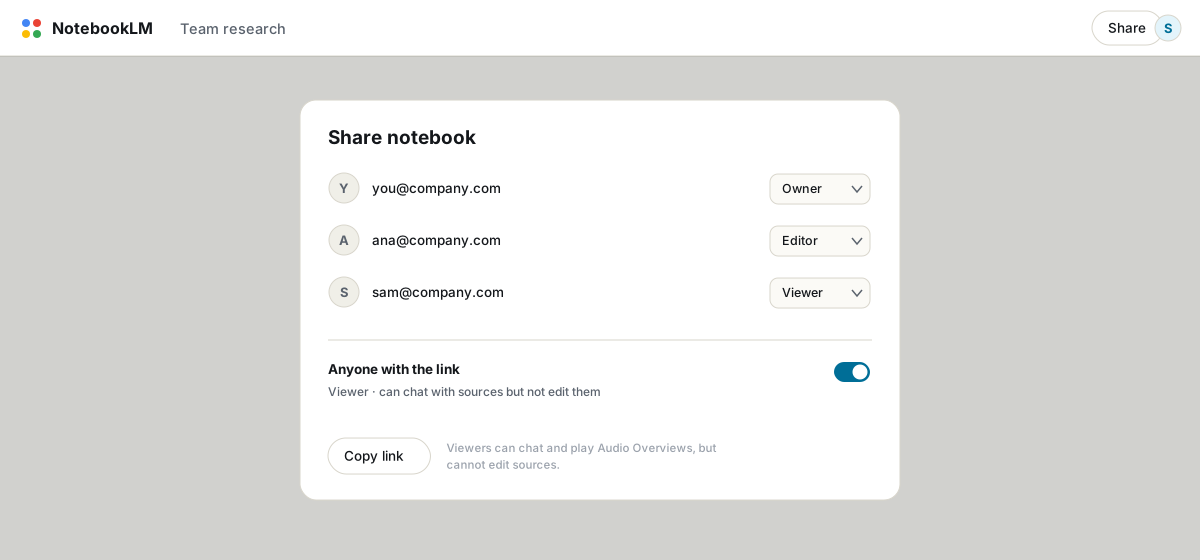
- Lecteur peut lire les sources, discuter avec le notebook, et lire ou générer des productions Studio comme les Audio Overviews. Il ne peut pas ajouter, retirer ou modifier des sources ou des notes.
- Éditeur peut faire tout ce qu'un Lecteur peut faire, plus gérer les sources, les notes et le partage à son tour. Traitez l'accès Éditeur comme vous traiteriez un accès en écriture à un document partagé ; réservez-le aux personnes qui curatent réellement les contenus.
- Sur les comptes Google personnels, un notebook accepte jusqu'à 50 collaborateurs au total, sans prise en charge des groupes Google. Les comptes Workspace ont leurs propres règles de partage gérées par un administrateur.
Liens publics
Activer « Toute personne disposant du lien » rend le notebook accessible sans invitation, utile pour publier un notebook de recherche organisé, un compagnon de cours, ou un notebook de référence pour un public plus large que celui que vous voudriez ajouter individuellement. Les personnes qui consultent le lien public peuvent discuter avec les sources et lire les productions générées, mais ne peuvent rien modifier. Il existe aussi une variante de lien Vue Chat qui masque entièrement les sources et productions Studio sous-jacentes, ne montrant que l'interface de discussion ; notez que Google lui-même prévient que des personnes déterminées peuvent tout de même trouver des moyens d'atteindre le contenu masqué, donc ne le considérez pas comme une barrière de sécurité absolue pour du contenu sensible.
Ce qui reste privé
L'historique de discussion est privé à chaque personne, même dans un notebook partagé. Vos questions et celles d'un collaborateur n'apparaissent pas dans l'historique de l'autre, et les réglages de discussion et instructions personnalisées de chacun sont également personnels. L'état partagé se limite aux sources, aux notes et aux productions Studio générées.
Statistiques d'utilisation
Les offres payantes affichent des statistiques d'utilisation basiques sur les notebooks partagés, utilisateurs actifs et nombre de requêtes par jour, une fois qu'au moins quatre autres personnes ont interagi avec le notebook au cours de la semaine passée. Pour un notebook d'enseignement ou une référence interne d'équipe, cela sert aussi de signal en direct sur ce qui prête vraiment à confusion : ce qui est le plus demandé est ce qui a besoin d'une meilleure source.
Avant de partager quelque chose de sensible
- Confirmez que vous partagez avec le niveau d'accès prévu ; vérifiez bien Lecteur contre Éditeur avant d'envoyer le lien, car la différence se manque facilement d'un clic.
- Pour du contenu confidentiel (juridique, médical, documents professionnels propriétaires), préférez un compte Workspace ou Enterprise à un compte personnel, et limitez le partage à des personnes nommées plutôt qu'à un lien public.
- Révoquez l'accès en retirant quelqu'un de la liste de partage ; pour un lien public, désactiver l'accès public casse le lien immédiatement pour quiconque n'a pas déjà enregistré une copie de ce qu'il a consulté.
Si un notebook est sur le point d'être diffusé à un public large ou public, exportez une sauvegarde d'abord. Le partage ne remplace pas le fait d'avoir votre propre copie.
FAQ
Puis-je partager un notebook NotebookLM publiquement ?
Oui. Activez « Toute personne disposant du lien » dans la fenêtre de partage. Les personnes qui consultent le lien public peuvent discuter et lire les productions générées, mais ne peuvent pas modifier les sources.
Que peut faire un Lecteur par rapport à un Éditeur ?
Un Lecteur peut discuter avec le notebook et utiliser les productions Studio mais ne peut pas modifier les sources. Un Éditeur peut aussi ajouter, retirer et modifier des sources, et partager le notebook à son tour.
L'historique de discussion est-il partagé entre collaborateurs ?
Non. L'historique de discussion et les réglages de discussion de chaque personne lui sont privés, même dans un notebook partagé. Seuls les sources, les notes et les productions générées sont partagés.
NotebookLM est-il la même chose que Gemini Notebook ?
Oui. Google a renommé NotebookLM en Gemini Notebook en juillet 2026 — c'est le même produit, les mêmes fonctionnalités, juste un nouveau nom.
Exportez votre NotebookLM en un clic
Extension Chrome gratuite. PDF, Word et Markdown. Généré sur votre machine — rien n'est envoyé en ligne.