NotebookLM flashcards and quizzes: how to actually study with them
NotebookLM generates flashcards and quizzes from your course material in one click, with cited explanations for every answer. Used naively they test recognition; set up properly they run your whole revision loop.
NotebookLM was renamed Gemini Notebook in July 2026. This guide covers the same product under its new name — everything below still applies whether you know it as NotebookLM or Gemini Notebook.
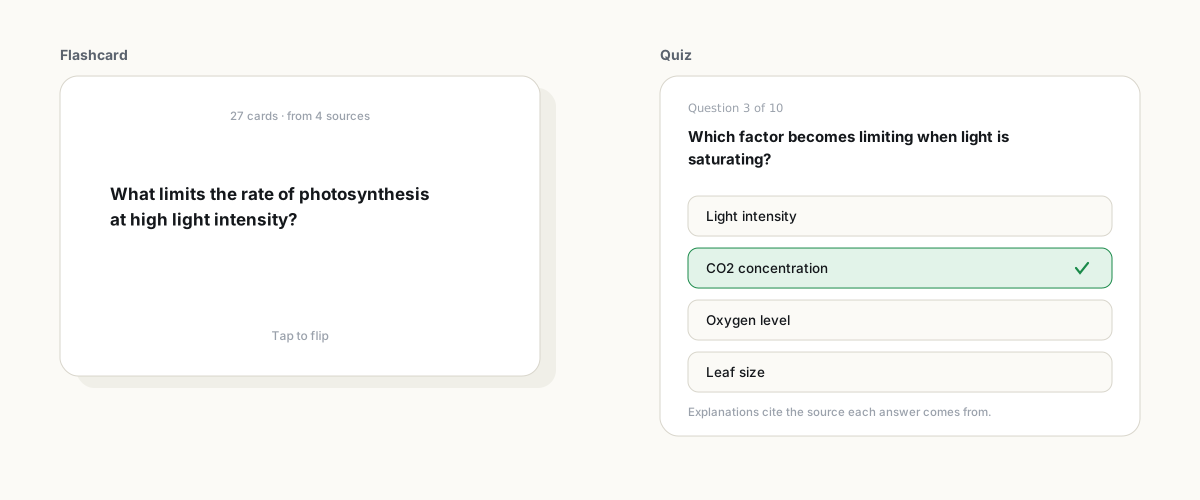
Click Flashcards or Quiz in the Studio panel. The pencil icon opens customization: difficulty (easy, medium, hard), quantity, and a focus prompt. While studying, mark cards Got it or Missed it and retake just the missed ones. Every quiz answer has an Explain button that cites the source. Flashcards download as CSV.
The Explain button is the learning loop
Getting a question wrong is the useful part of a quiz, but only if you find out why. Every NotebookLM quiz answer has an Explain button that generates a breakdown citing the exact source passage. Make it a rule: never skip Explain on a miss. The citation matters too, because occasionally the generated question itself is off, and the passage is how you catch that.
Customize past recognition-level cards
Default flashcards lean toward "What is X?" definitions. Real exams ask you to apply, compare and diagnose. The focus prompt fixes this. When generating, ask for a specific mix:
Make application-focused cards: 5 definitions, 8 cause-and-effect ('what happens if...'), 6 comparisons ('how does X differ from Y'), 6 scenario cards using realistic situations.The same field takes topical constraints ("only chapters 5 and 6", "focus on what the past exams emphasize"). If you feed past exams in as sources, the generated questions start resembling your professor's actual style, which is worth more than any general question bank.
A revision loop that uses the tracking
- Generate hard. Set difficulty to hard and quantity to more. Easy quizzes feel good and teach little.
- First pass, everything. Mark honestly: Got it or Missed it.
- Second pass, missed only. The retake option lets you drill just the failures.
- Explain every miss. Read the cited passage, not just the explanation.
- Regenerate on the weak topics. Fresh questions on the same material, so you learn the concept instead of memorizing the question.
Getting cards out: CSV, Anki and paper
NotebookLM has no spaced-repetition scheduler, and cramming tools should not pretend to be memory tools. The good news: flashcards download as CSV, which Anki imports directly. The division of labor is clean, and it plays to each tool's strength: NotebookLM writes grounded cards from your actual course material, Anki schedules them over weeks. Community extensions automate the export if you do this often. For a paper copy of a full study set, or to share one with classmates who do not use the app, export the study guide to PDF.
Limits
Free accounts generate 10 flashcard decks and 10 quizzes per day, Pro raises both to 100 (full table in free vs paid). Both features work in the mobile app, which is where flashcards belong anyway: queues, buses, the ten minutes before class.
FAQ
Can NotebookLM make flashcards from a PDF?
Yes. Upload the PDF as a source, then click the Flashcards tile in Studio. The pencil icon lets you set difficulty, quantity and a focus prompt before generating.
Can I export NotebookLM flashcards to Anki?
Yes. Download the deck as CSV from its menu and import into Anki. NotebookLM writes the cards; Anki handles the spaced-repetition scheduling.
Are the quiz answers reliable?
Generally yes, since they generate from your sources, but use the Explain button and its citation to verify anything surprising. A misread source produces a wrong question occasionally.
Is NotebookLM the same as Gemini Notebook?
Yes. Google renamed NotebookLM to Gemini Notebook in July 2026 — it's the same product, same features, just a new name.
Xuất NotebookLM của bạn chỉ với một cú nhấp
Tiện ích Chrome miễn phí. PDF, Word và Markdown. Kết xuất trên máy của bạn — không tải gì lên.